This article explains how to create an ePIN and use the physical signature feature for documentation on the BestNotes mobile application.
Permissions Required
No specific BestNotes permissions are required.
Managing Mobile ePIN and Physical Signatures
Creating an ePIN
- A contact can create an ePIN by tapping the contact's settings and the E-Signature PIN button.

Using Physical Signatures
- Contact BestNotes by submit a support ticket or calling (866) 543-6646 to activate the physical signature feature for your mobile device. NOTE: If you have an Android Device, you must update to the latest version of the Android App.

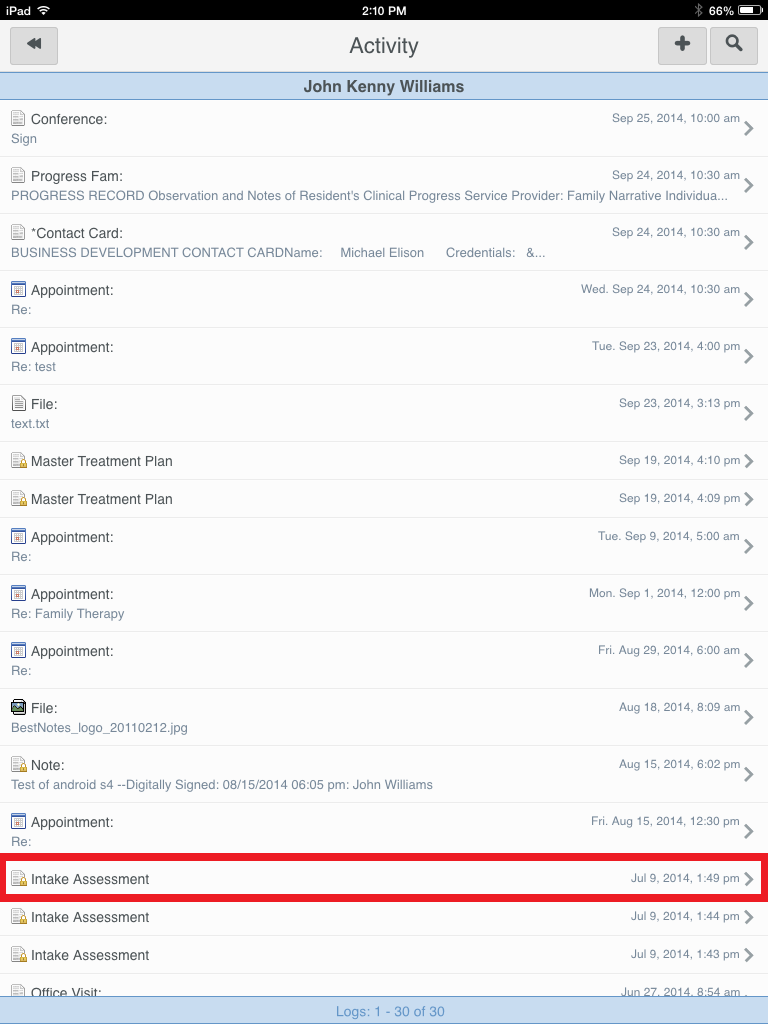
- Open a Note on a client's Activity Log.
- Tap the Sign Now button.

- Press and sign.

- Tap Accept.

The note will then display with the physical signature:
